Interaction PLUS Documentation
Interaction PLUS is a code plugin that add professional interaction components to your project.
You can buy it from Marketplace and use it in your games.
 Proximity Prompt Component
== PUBLIC VARIABLES ==
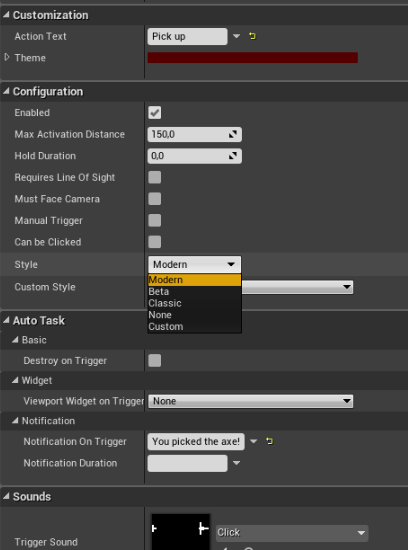
ObjectText - The optional object name text shown to the user.
ActionText - The action text shown to the user.
KeyboardKey - The keyboard key which will trigger the prompt.
GamepadKey - The gamepad button which will trigger the prompt.
Theme - RGB theme color used by proximity prompt styles and widgets.
bIsEnabled - Whether the prompt is enabled and can be triggered.
MaxActivationDistance - Maximum range of trigger detection.
HoldDuration - How long input must be holded until trigger.
bHoldLooped - Whether the prompt will trigger again automatically after hold duration reached. (HoldDuration must be greater than 0 in order to this work)
Priority - Priority determines which prompt should be preferred first. For example if there are two prompts, prompt with highest priority will show.
bRequiresLineOfSight - Whether the prompt is hidden if the path between the player’s Camera and object parented to the ProximityPrompt is obstructed. (can be glitchy if no tick used)
bMustFaceCamera - Whether the prompt is hidden and non triggerable if player cannot see it.
bCanBeClicked - Can be triggered by mouse? * NOTE: Touch enabled platforms will override this option.
bCanBeTriggered - Whether the prompt can be triggered. If false, TriggerFailed will be fired for every attempt.
bRenderDepth - If true, Custom Render Depth of owner actor's static mesh component (primary) will be enabled and disabled automatically depending on proximity prompt's visibility.
bDestroyOnTrigger - Setting this to true will destroy proximity prompt when it is successfully triggered.
ViewportWidgetOnTrigger - Whether the prompt automatically add an user widget to viewport when proximity prompt is triggered. OPTIMIZATION: Proximity prompt will always keep the widget inactive in memory until its destroyed. When prompt is shown the widget will be enabled and added to viewport. When prompt is hidden (AutoRemoveViewportWidget must be true) the widget will be disabled, removed from viewport and not run on background. Additionally, the widget may be garbage collected when proximity prompt is destroyed.
bAutoRemoveViewportWidget - Whether to remove vidget from viewport when prompt is hidden or retriggered while widget is in viewport. NOTE: If false, removal of the widget must be done manually or it will stay on the viewport forever and can cause memory leak.
== EVENT DISPATCHERS ==
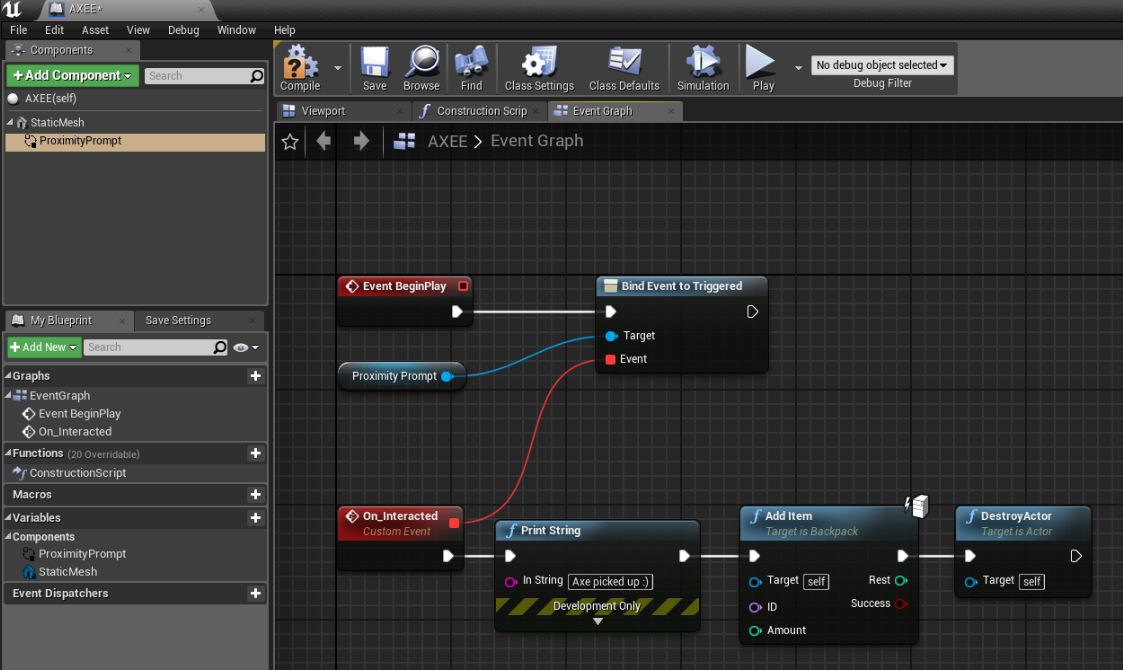
Triggered - (Client) Triggered when the prompt key/button is pressed, or after a specified amount of time holding the button, if HoldDuration is used.
ServerTriggered (aka Triggered (Server) for blueprints) - Same as Triggered event but only fires on server. Implement this as server side code. For this to work bReplicateInteraction of Proximity Prompt and bReplicationSupport of ProjectSettings>InteractionPLUS must be enabled.
PromptShown - Triggers when the prompt becomes visible and player is subscribed to prompt
PromptHidden - Triggered when a player begins holding down the key/button connected to a prompt with a non-zero HoldDuration
PromptButtonHoldBegan - Triggered when a player begins holding down the key/button connected to a prompt with a non-zero HoldDuration
PromptButtonHoldEnded - Triggers when the player ends holding down the button on a prompt with a non-zero HoldDuration
TriggerFailed - Triggers when the player does not match requirements when attempt on triggering the proximity prompt
== FUNCTIONS ==
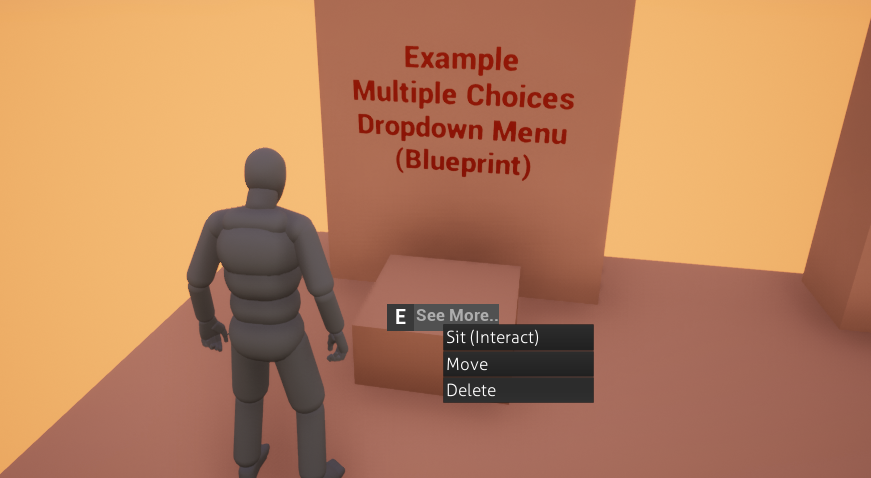
> IsOnScreen() // Returns true if proximity prompt is on screen and can be seen by camera. (no raycast check, for raycast see bRequiresLineOfSight) (originally used by functionality of MustFaceCamera boolean and dropdown menu)
> GetScreenLocation() // Returns location of the proximity prompt in local screen. (originally used for welding dropdown menu)
> IsInRadius() // Returns if overlapped with local pawn.
> GetLocalKeyName() // Returns action binding name of the proximity prompt.
> GetMaxActivationDistance(const float newRadius) // Returns MaxActivationDistance.
> SetMaxActivationDistance(const float newRadius) // Sets activation radius dynamically.
> SetActionText(const FText newText) // Sets action text dynamically and updates style run-time.
> SetObjectText(const FText newText) // Sets object text dynamically and updates style run-time.
> SetCustomStyle(UUserWidget* newStyle) // Overrides custom style dynamically.
> SetActive(...) // This function is inherited from UActorComponent but it can also enable and disable all Proximity Prompt functionalities and its style dynamically without destroying the component. SetActive(false) will dynamically (if prompt is con currently shown it gets hidden smoothly) hide the prompt and make it inaccessible while SetActive(true) will reactivate it dynamically (prompt will be shown if player is near) with all old functionalities back. This function is also used in built-in cooldown system.
> Destroy(...) // This function will permanently delete the interactable and clear all memory.
 Proximity Prompt Blueprint Function Library (UPromptUtilities)
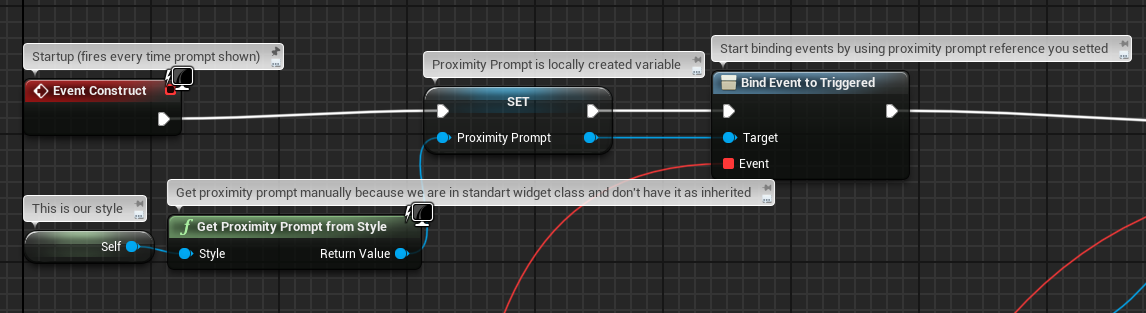
> GetProximityPromptFromStyle(const UUserWidget* Style)
// Useful for custom proximity prompt styles that do not inherit from ProximityPromptStyle.
// WARNING: This function is expensive! If you want high performance avoid using this in ticks or make your styles inherit from ProximityPromptStyle. If your custom style is ProximityPromptStyle you can simply get reference to ProximityPrompt without needing this.
// EXAMPLE OF USE: For style, create a widget, place this function on begin play, save returned value (Proximity Prompt) and use it for binding functions.
> GetNearestProximityPromptToLocation(const FVector Location)
// Gets nearest proximity prompt to a specific location.
> GetActiveProximityPromptOfKey(const FKey keyboardKey)
// If found, returns active proximity prompt of key. Otherwise returns nullptr. (originally used for implementing multiple prompt at same location)
Proximity Prompt Styles
== TUTORIAL + SETUP ==
Unless if you have different use cases, styles are most important feature for proximity prompts that should be used.
A proximity prompt style will be shown to player when overlapped.
You can create your own design for proximity prompts and it's very easy.
Blueprints should be used for creating a custom style however you can still use C++ for widgets if you want best optimization.
You can simply copy built-in styles (like modern) and edit it for your use cases. To easily understand how does styles work inspect a built-in style for minutes.
Steps for creating a custom style from scratch:
- Create ProximityPromptStyle class or create widget blueprint and reparent it to ProximityPromptStyle. (if you wish you can go with standart widgets but you will be missing out libraries)
- Build your widget in UMG.
Yes... That's all if you don't want animations.
Follow next steps if you also want animations
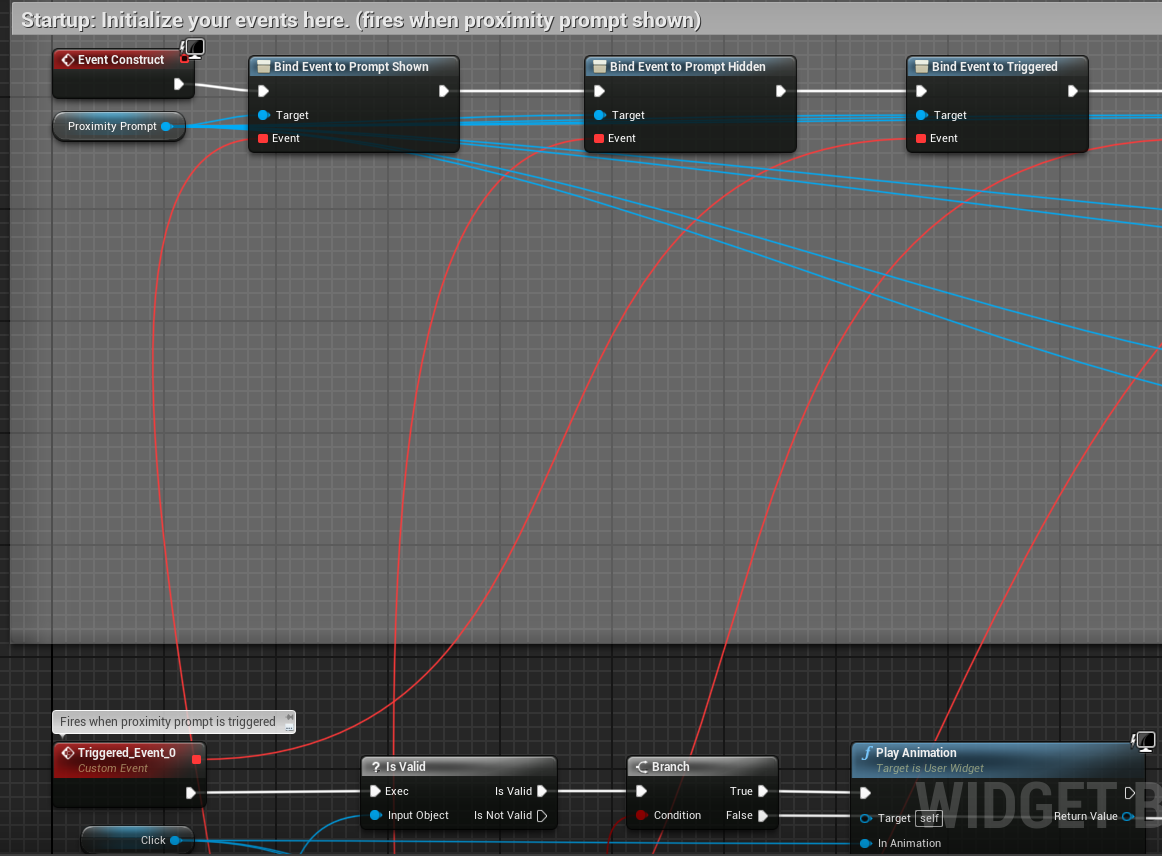
- Go to your blueprint, right click and get ProximityPrompt (this is an inherited variable if you are using ProximityPromptStyle as class, alternatively use function GetProximityPromptFromStyle and reference self)
- On BeginPlay, hold your ProximityPrompt and start assigning event dispatchers to custom events (like OnTriggered, PromptShown, PromptHidden)
- For example if you want to play animation when prompt is triggered, then go to your triggered custom event you assigned from your proximity prompt, create a node "Play Animation" and set animation you wish to play. Your animation will play when prompt is triggered.
It will look like this if created as ProximityPromptStyle class:
It will look like this if created as engine's UserWidget class:
In final go to your Proximity Prompt component, set Style to Custom and set Custom Style (PromptWidget old name) to the style you recently created.
Play the game to see results.
DEBUGGING
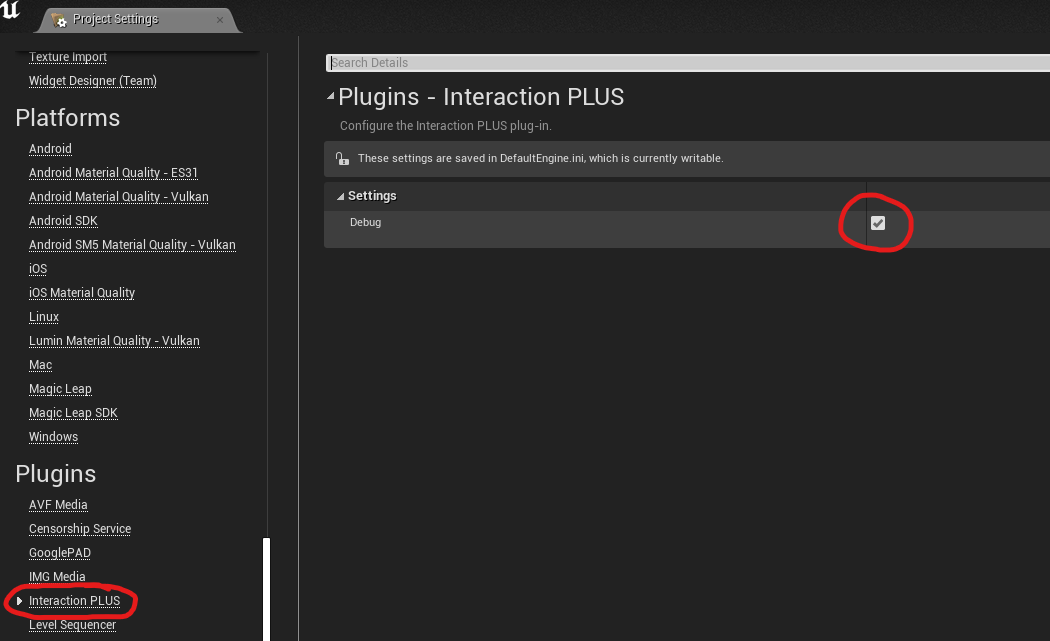
Go to Project Settings>Plugins>InteractionPLUS and enable Debug.
When you play the game in editor you will realize interactable objects print debug strings.
Debug is always disabled in shipping build so you don't need to worry about it.
Feel free to use debug feature if you need to.